
Picture this nightmare scenario: You spend weeks researching, sketching, and refining a stunning vector logo for a client. The client loves it, pays your invoice, and you happily send over a single, high-resolution .png file.
Three months later, you get a frantic call. The client tried to print your logo on a giant vehicle wrap or a stadium billboard, and it looks like a blurry, pixelated mess from a 1990s video game. The print shop is angry, the client is embarrassed, and your professional reputation just took a massive hit.
Over here at logodesigninspo.com, we tell designers one thing constantly: Your design is only as good as your handoff. A true professional identity designer doesn’t just deliver a beautiful graphic; they deliver an organized, bulletproof toolkit of specific file formats tailored for different digital viewports and print machines.
If terms like raster, vector, lossy, and lossless make your head spin, don’t worry. This ultimate guide breaks down the four essential logo file formats—SVG, PNG, EPS, and PDF—and exactly when to use each one.
1. The Line in the Sand: Raster vs. Vector
Before we dissect individual formats, we must understand the fundamental divide in graphic design DNA. Every file extension falls into one of two camps:
-
Raster Images (Pixels): Built out of a fixed grid of tiny colored squares. If you stretch a raster image beyond its original size, the software has to guess how to fill the gaps, resulting in blurry, pixelated edges.
-
Vector Graphics (Math): Built using mathematical coordinate paths, anchor points, and geometric curves. Because it relies on mathematical equations rather than fixed pixels, a vector file can scale infinitely—from a tiny smartwatch display to the side of a spaceship—and remain perfectly crisp.
2. The Vector Powerhouses: SVG and EPS
🌐 SVG (Scalable Vector Graphics)
The undisputed king of modern web design. Unlike legacy images, an SVG is actually written in XML text-based code. If you open an SVG in a text editor, you won’t see pixels; you’ll see a list of vector coordinates and color fills.
-
When to Use It: Non-negotiable for responsive website design, digital user interfaces, app designs, and software navigation bars.
-
Why It Rules: It is incredibly lightweight, meaning it keeps website loading speeds lightning-fast. Because it’s vector, it looks razor-sharp on high-resolution Apple Retina and OLED displays.
-
The Limitation: It is built purely for digital screens. Do not send an SVG to a traditional print shop.
📐 EPS (Encapsulated PostScript)
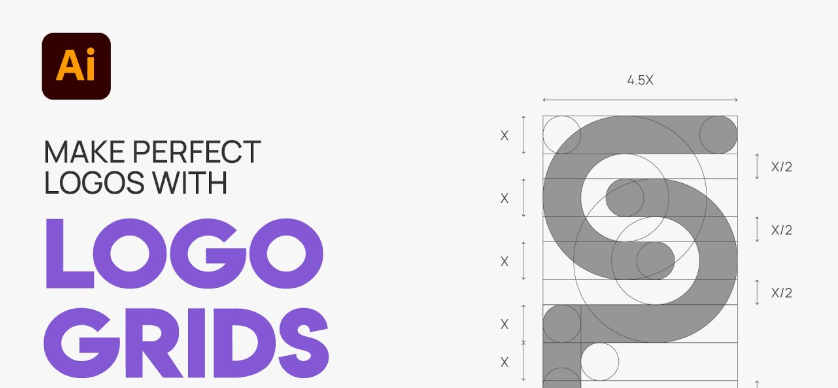
The legacy gold standard of the print industry. If you constructed a logo using geometric grids in Adobe Illustrator, an EPS is the safest container to preserve those raw vector paths for heavy manufacturing.
-
When to Use It: Whenever you send design assets to professional printers, merchandise manufacturers, embroidery shops, or sign makers.
-
Why It Rules: It preserves CMYK color data, vector layers, and Pantone color matching perfectly. Print shop software can read EPS files natively to plot cutting lines for vinyl decals or calculate stitch patterns for hats.
-
The Limitation: It is a dying format for web developers, and clients usually cannot open an EPS file without premium software like Illustrator or CorelDRAW.
3. The Digital Workhorse: PNG
🖼️ PNG (Portable Network Graphics)
If you need a digital image that isn’t made of code, you use a PNG. It is a raster format, meaning it is bound to pixels, but it utilizes a special compression method called lossless compression—it retains full crispness without generating ugly compression artifacts like a JPEG does.
-
When to Use It: Perfect for standard digital applications—social media profile pictures, email signatures, Microsoft PowerPoint slides, internal company documents, and web watermarks.
-
Why It Rules: The single greatest feature of a PNG is its support for an Alpha Channel (Transparency). It allows your logo to have a completely clear background, letting you drop a colorful icon cleanly onto a dark webpage or a busy photo without a distracting white box framing it.
-
The Limitation: It is a raster file. If you export a PNG at $500 \times 500$ pixels, it will degrade if stretched to $2000 \times 2000$ pixels. Always export PNGs at multiple scaling tiers.
🛑 Why We Omit JPEGs for Core Logos
You might be wondering: Where is the humble JPEG? As an identity designer, you should almost never use a JPEG for a core logo file. JPEGs do not support transparent backgrounds, and their “lossy” compression model slowly degrades the crisp, clean lines of typography every single time the file is re-saved. Save JPEGs for photography; leave them out of your logo toolkit.
4. The Universal Bridge: PDF
📕 PDF (Portable Document Format)
The absolute chameleon of the design world. Created by Adobe, a PDF is unique because it can hold both complex vector paths and high-resolution raster images simultaneously, all while locking the formatting into stone.
-
When to Use It: The ultimate format for client presentations, corporate brand guidelines documentation, and modern digital printing presses.
-
Why It Rules: Universally compatible. Anyone can open a PDF on their smartphone, tablet, or web browser without needing expensive graphic software, yet the vector data inside remains perfectly editable for a print shop.
-
The Limitation: Ensure you export the PDF directly from vector software with “Preserve Illustrator Editing Capabilities” checked. A scanned or flattened PDF is just a raster image in disguise.
📊 Master Reference Matrix: The Logo File Overview
To ensure you never mix up your deliverables again, bookmark this quick-reference chart for your production workflow:
| File Format | Base Technology | Primary Environment | Supports Transparency? | Target Audience / Use Case |
| SVG | Vector (Code) | Digital / Web UI | Yes | Web developers, UI designers, modern web layout engines. |
| EPS | Vector (Paths) | Commercial Print | Yes | Print shops, t-shirt printers, sign makers, vinyl installers. |
| PNG | Raster (Pixels) | Digital / Desktop | Yes | General clients, social media apps, office slide decks. |
| Mixed / Vector-capable | Universal / Print | Yes | Client viewing, digital printing presses, brand style guides. |
5. The Ultimate Professional Logo Packaging Blueprint
When you are ready to wrap up a project and hand over the final files to your client, don’t just dump a messy pile of files into a shared Google Drive folder. Organize them like an enterprise agency. Structure your final delivery zip folder using this clean architectural template:
📦 CLIENT_LOGO_PACKAGE/
├── 📂 PRINT_FILES (CMYK Vector)/
│   ├── 📄 Logo_FullColor_Master.eps
│   ├── 📄 Logo_FullColor_Master.pdf
│   ├── 📄 Logo_SolidBlack_Print.eps
│   └── 📄 Logo_SolidWhite_Print.eps
└── 📂 WEB_DIGITAL_FILES (RGB)/
    ├── 📂 SVG_Vector_Code/
    │   └── 🌐 Logo_Digital_Icon.svg
    └── 📂 PNG_Transparent_Raster/
        ├── 🖼️ Logo_RGB_HighRes_2000px.png
        ├── 🖼️ Logo_RGB_MediumRes_1000px.png
        └── 🖼️ Logo_Favicon_32px.png
By separating your assets into dedicated Print (CMYK) and Digital (RGB) directories, and organizing them cleanly by format, you provide immense value to your client. You save them from future technical headaches, prevent production errors, and solidify your positioning as an elite, meticulous professional who understands the full lifecycle of identity design.
Leave a Reply