
Midjourney is an absolute powerhouse when it comes to generating breathtaking digital art, surreal concept landscapes, and hyper-detailed characters. But if you try to prompt it for a logo using casual language, it almost always defaults to its artistic instincts. You’ll end up with complex 3D shading, messy drop-shadow gradients, photographic textures, and chaotic background mockups.
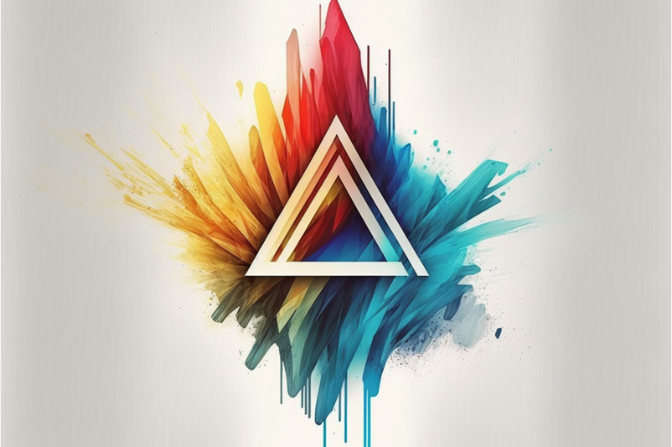
In other words, it gives you a beautiful illustration, but a terrible, unmarketable logo.
To tame Midjourney and force it to output clean, high-contrast, minimalist shapes that can actually function as a brand asset, you have to speak its specific structural language. Over at logodesigninspo.com, we’ve spent countless hours hacking the prompt engine.
Here is your definitive blueprint for generating professional, vector-style logos inside Midjourney that are perfectly primed for a digital-first ecosystem.
1. The Core Paradox: Why Midjourney Hates Minimalism
By default, Midjourney’s neural network is trained to maximize aesthetic depth. It wants to show off its rendering capabilities. Left to its own devices, a prompt like “a logo of a wolf” will yield a hyper-detailed, glowing wolf head against a moody dark background.
To override this bias, your prompts must be highly restrictive. You are not describing a scene; you are outlining a structural geometric silhouette. You must explicitly command the engine to drop the details and focus purely on form, edge detection, and negative space.
2. The Golden Vocabulary for Vector-Style Prompts
The secret to clean logo generation lies in deploying specific architectural keywords. Mix and match these phrases in your foundational prompt strings to strip away illustrative noise:
-
Style Descriptors:
flat vector style,minimalist logo icon,simple geometric shapes,swiss graphic design style,2d flat graphic. -
Execution Commands:
clean sharp lines,high contrast,solid vector silhouette,stark minimalism. -
Aesthetics to Steal:
Scandinavian minimalism,bauhaus design,corporate brand identity icon.
🚫 Toxic Words to Avoid
Never use fluff words like hyperrealistic, award-winning, stunning, beautiful, 4k, or intricate details. These phrases trigger Midjourney’s rendering engine to inject micro-textures and gradients, which completely destroys the clean vector aesthetic.
3. The Structural Prompt Blueprint
To get consistent results, follow this modular prompt structure every single time you generate an asset:
Let’s look at three practical, copy-pasteable examples built on this exact formula:
Example 1: The Modern Tech Mark
/imagine prompt: A minimalist geometric falcon icon, flat vector style, clean sharp lines, blue and solid white color palette, isolated on a solid white background --style raw --s 50
Example 2: The Boutique Lifestyle Brand
/imagine prompt: A simple continuous line art logo of a monstera leaf, Scandinavian design style, flat 2D graphic, solid black on a solid white background, stark minimalism --style raw --s 75
Example 3: The Industrious Bold Emblem
/imagine prompt: A heavy slab geometric anchor logo, interlocking bold vector shapes, flat design, dual tone crimson and navy, isolated on a solid white background --style raw --s 30
4. The Defensive Shield: Master the Negative Prompt (--no)
In logo design, what you exclude is just as important as what you include. The --no parameter acts as a hard filter, telling Midjourney exactly what elements to ban from the canvas.
If you want a clean logo, append this exact defensive string to the end of your prompts:
--no realistic, photo, 3d, gradients, shadows, shading, desktop background, mockups, realistic textures, text, words, typography, complex details
By explicitly banning text and typography, you prevent Midjourney from trying to generate its signature AI gibberish text, leaving you with a clean, standalone icon that you can pair with a professional font later.
📊 Parameter Calibration Matrix for Logo Design
To ensure the machine behaves predictably, you must tune Midjourney’s underlying engineering knobs. Use these parameter calibrations for optimal branding outputs:
| Parameter | Recommended Setting | What It Does for Your Logo |
--style raw |
Mandatory | Turns off Midjourney’s default artistic embellishments, forcing it to follow your literal text prompt exactly. |
--s (Stylize) |
Low (30 to 100) |
Lower values prevent the AI from adding unnecessary decorative details, maintaining geometric simplicity. |
--ar (Aspect Ratio) |
Default (1:1) |
Keeps the canvas perfectly square, which is ideal for centering standalone icons and avatars. |
--chaos |
Low (0 to 10) |
Low chaos ensures that your four generation variations stay closely aligned to your core prompt concept. |
5. The Critical Final Step: Converting Raster to True Vector
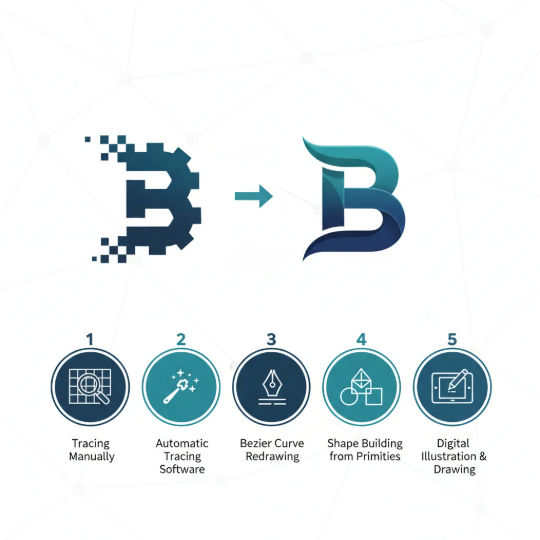
Here is a necessary dose of candor: Midjourney does not output vector files. No matter how many times you type “SVG” or “vector” into your prompt, Midjourney will always deliver a flat raster .png or .jpeg built out of pixels.
An AI-generated image is only the prototype. To make it a professional brand asset, you must bridge the gap from pixels to math using a vectorization pipeline:
[Midjourney PNG Output] ➡️ [Import to Illustrator/Figma] ➡️ [Run Image Trace / Vectorizer] ➡️ [Clean Path Geometry]
-
Isolate the Shape: Bring your high-contrast, white-background Midjourney output into Adobe Illustrator, Affinity Designer, or a specialized tool like Vectorizer.ai.
-
Execute Vectorization: Use the Image Trace panel (set to “Black and White Logo” or “Silhouettes” for cleanest results).
-
Optimize the Anchor Points: Expand the trace, delete the background paths, and look at the vector nodes. Manually smooth out any micro-jitters along the curves and ensure the handles line up perfectly with a geometric grid system.
By combining the raw generative imagination of Midjourney with the technical precision of traditional vector clean-up tools, you can slice your brainstorming and prototyping time in half while delivering an elite, scalable visual identity to your clients.
Leave a Reply