
10 Figma Plugins That Will Instantly Speed Up Your Logo Design Workflow
While Figma was originally built to design digital user interfaces and landing pages, it has quietly evolved into an absolute powerhouse for vector-based brand identity design. With its unique vector networks—which let you connect lines in web-like meshes rather than rigid linear paths—building geometry in Figma is often faster than using traditional legacy illustration apps.
However, if you are relying purely on Figma’s out-of-the-box pen and shape tools, you are leaving massive amounts of speed on the table.
In 2026, the Figma community ecosystem features a deep library of hyper-focused tools engineered specifically to automate tedious anchor point plotting, typography curves, and presentation mockups.
Over at logodesigninspo.com, we are obsessed with optimizing design execution. Here are the 10 essential Figma plugins that will shave hours off your logo design pipeline and keep your creative energy where it belongs: on the concept.
🛠️ The Top 10 Figma Plugins for Brand Designers
1. Arc
Figma natively struggles with wrapping text along curves. Arc solves this perfectly. Select your brand’s secondary tagline text, open the plugin, adjust a simple curve slider, and it will instantly bend your characters into a flawless circle or semi-ellipse—essential for badge-style and retro emblem lockups.
2. To Path
If you need to repeat a specific shape (like chain links, stars, or geometric dots) along a custom vector line, To Path is your best friend. Instead of manually copying, pasting, and rotating 50 individual shapes around a circle, this plugin binds any object or group along any path automatically, keeping them perfectly uniform.
3. Image Tracer
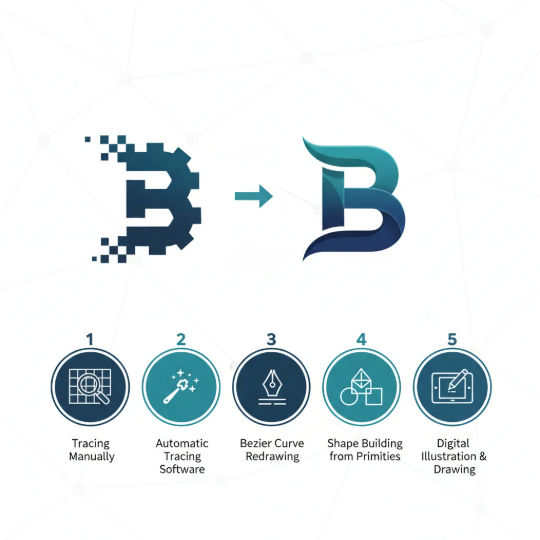
Need to convert a hand-drawn napkin sketch or a flat pixelated idea into clean vector lines without leaving your canvas? Image Tracer scans black-and-white raster graphics and traces them into fully editable vector layers directly inside Figma in a single click.
4. Easometric
Presenting a flat, 2D logo on a blank artboard can fail to excite clients. Easometric lets you select your final logo lockup and instantly skew it into an accurate 3D isometric perspective. It is perfect for showing how a logo looks laid out on physical packaging or corporate signage.
5. Geometric
For designers who love complex, mathematically precise geometric geometry, Geometric generates intricate spirographs, perfect multi-point stars, and mathematical polygons on the fly. It gives you a beautiful, flawless geometric foundation that you can break apart and manipulate with your pen tool.
💡 Pro-Tip: The Value of Competitor Benchmarking
Never design a brand system in a vacuum. Before locking down your layout, use the canvas to visually compare your concept directly against your client’s real-world market space to ensure you stand out.
6. Brandfetch
Instead of scouring Google Images for low-resolution competitor assets, use Brandfetch. Type in any corporate URL, and the plugin will instantly pull that company’s official, high-resolution vector logos, color codes, and brand typography directly onto your working canvas for immediate comparison.
7. Blobs
If your brand concept calls for organic, fluid, and natural shapes rather than rigid geometry, Blobs generates unique, smooth vector shapes on command. You can control the complexity and uniqueness of the curves, providing an excellent abstract baseline for modern tech logos.
8. Vector Twist
Vector Twist introduces advanced warp and distortion physics to Figma. It allows you to select a series of parallel lines or geometric grids and apply a controlled spiral or twist deformation, resulting in futuristic, kinetic wave patterns that are incredibly difficult to map manually.
9. Contrast
A logo must maintain high readability regardless of the background it sits on. Contrast runs split-second accessibility audits over your color pairings, giving you a clear pass/fail score based on global visibility standards to guarantee your wordmark is perfectly readable on light, dark, and mobile display environments.
10. Scale
Scaling intricate vector groups in Figma can sometimes lead to unexpected line-weight distortion or rounding errors. Scale provides a dedicated pop-up panel that lets you scale complex logo lockups numerically by exact percentages or pixel dimensions, ensuring your stroke weights and corner radiuses stay perfectly proportional.
📊 Quick-Reference Plugin Matrix
| Plugin Name | Primary Superpower | Best Used For |
| Arc | Perfect text bending | Badge and round emblem layouts |
| To Path | Object-to-stroke repetition | Complex decorative borders and frames |
| Image Tracer | Instant vector conversion | Turning rough analog sketches into paths |
| Easometric | 3D presentation projection | Creating high-end client presentation decks |
| Geometric | Advanced mathematical shape creation | Technical, scientific, and geometric marks |
| Brandfetch | Global brand asset pulling | Fast competitive analysis and discovery |
| Blobs | Generative organic curves | Liquid, abstract, or friendly company icons |
| Vector Twist | Path warp and distortion | Kinetic energy, movement, and wave graphics |
| Contrast | Instant visibility checks | Validating text readability across backgrounds |
| Scale | Proportional resizing stabilization | Prepping ultimate high-res export files |
⚡ The Ultimate High-Speed Presentation Workflow
To tie these tools together into a unified, lightning-fast design sprint, apply them in this practical sequential pipeline:
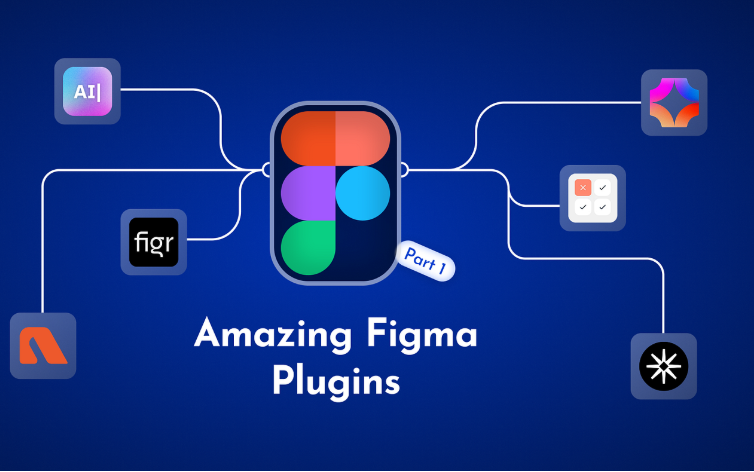
By augmenting Figma’s core vector networks with these targeted automation plugins, you transform your workspace from a standard app UI tool into a hyper-efficient, professional branding workstation.




Leave a Reply