

For years, the generative AI workflow for logo designers felt like a double-edged sword. You would generate an incredible, inspiring concept inside Midjourney or DALL-E, only to spend the next hour painstakingly tracing over it with the Pen Tool to make it an actual, scalable vector asset.
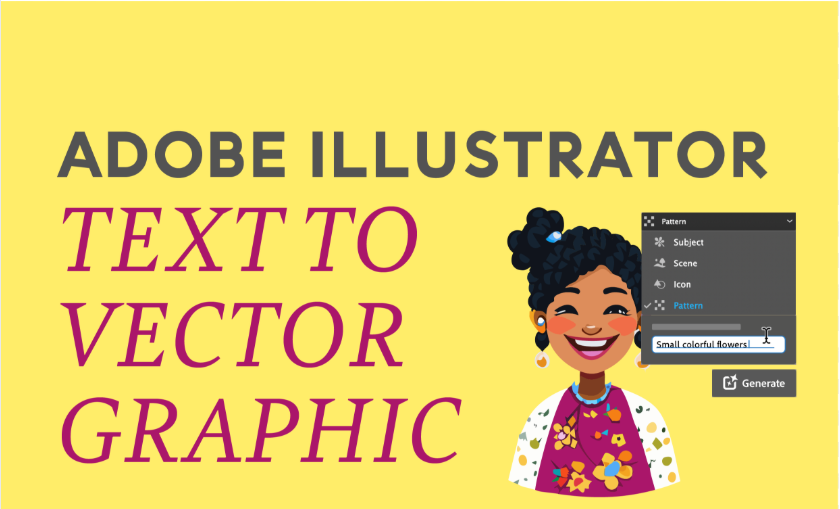
That massive production bottleneck shifted when Adobe integrated its native Text to Vector Graphic engine directly into the Illustrator workspace.
Powered by the Adobe Firefly Vector Model, this feature doesn’t just output flat, pixel-based images—it builds true, native vector paths, shapes, and anchor points completely from scratch based on your text prompts.
Over at logodesigninspo.com, we love tools that shorten the distance between a raw idea and a production-ready file. Here is how to configure Illustrator’s generative AI engine specifically for rapid, high-quality logo ideation.
1. Setting Up Your Vector Workspace
To get started, make sure your version of Adobe Illustrator is completely updated. The generative AI engine can be controlled from two places: the Contextual Task Bar that floats beneath your active selections, or the dedicated Text to Vector Graphic panel found under Window > Text to Vector Graphic.
2. The Step-by-Step Logo Generation Pipeline
The biggest mistake designers make when using this feature for branding is leaving the settings on default. If you don’t configure your parameters correctly, Illustrator will attempt to build highly detailed, illustrative scenes instead of clean corporate iconography.
Follow this sequence to ensure clean geometric paths:
3. How It Compares to Traditional AI Image Generators
It’s helpful to understand exactly where Illustrator’s tool fits compared to standalone web-based prompt tools you might already use in your brand design stack.
| Feature Category | Standalone Engines (Midjourney / DALL-E) | Illustrator Text to Vector |
| Output Medium | Raster Pixels (PNG, JPEG) | Native Vectors (Paths, Anchors, Layers) |
| Resolution Scale | Limited by pixel dimensions | Infinitely scalable without quality loss |
| Style Continuity | Requires complex seed numbers or reference URLs | Uses an intuitive on-canvas Style Picker dropper |
| Editability Level | Requires a manual tracing phase | Immediate handle, point, and path control |
| Best Used For | High-fidelity creative mood boarding | Rapid layout prototyping and structural icon design |
4. Advanced Ideation Strategy: Locking the Visual Style
One of the most powerful aspects of Illustrator’s tool is the ability to maintain aesthetic consistency across multiple client concepts. If you already have an established visual direction, you can force the AI to respect those design choices.
🎨 Pro Tip: The Style Picker
Look for the Style Picker (eyedropper icon) inside the generative panel. Click it, and then select an existing piece of vector art on your artboard.
When you click generate on your next text prompt, the engine will automatically mimic the color palette, stroke weights, and structural language of your reference art. This is an absolute game-changer for building out matching sub-brands or cohesive icon sets for a single corporate identity.
5. Taking Your Concept to the Finish Line
Once the engine generates its three initial variations, they will appear in your panel as thumbnails. Clicking a thumbnail places the vector art directly inside the bounding box you drew during Step 1.
Because these are native vector paths, your work isn’t locked down. You can instantly press Cmd+Shift+G (or Ctrl+Shift+G on Windows) to ungroup the elements, select individual anchor points with the Direct Selection Tool (A), smooth out any slight AI jitter using the Simplify Tool, or run the artwork through Generative Recolor to test dozens of brand color schemes in real time.
By integrating this feature directly into your brainstorming phase, you stop wasting valuable production hours bridging the gap between flat images and crisp vector files—allowing you to present fully scalable, professionally structured concepts to clients at triple the traditional speed.













Leave a Reply